Corgi pup figurine
 View in your room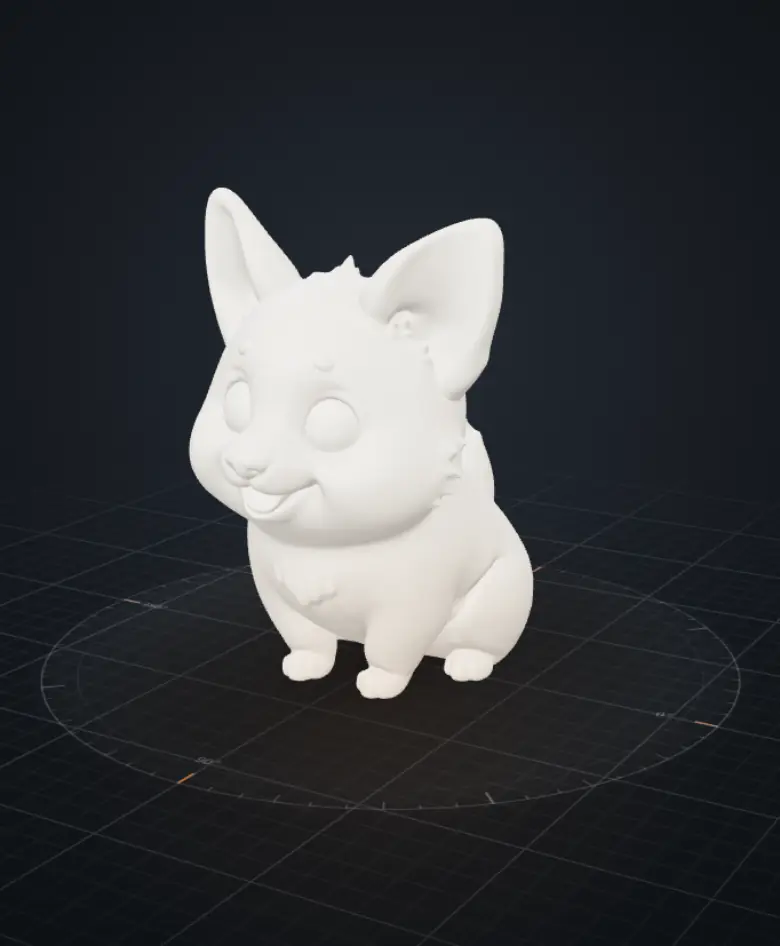
How to place it in your room
- Point at the floor, not a wallTap View in your room and aim at the floor or a table. Wood, rugs and tiles are found fastest; plain white, glossy or very dark surfaces are the hardest.
- Move slowly for 2–3 secondsIn bright, even light, sweep the phone slowly from side to side. iPhone shows “Move iPhone to start”; the model appears as soon as the floor is found.
- Place it, size it, turn itDrag to move it, pinch to make it bigger or smaller, twist two fingers to turn it. On iPhone, double-tap to go back to its original size.
- Keep a photo or a videoOn iPhone, tap the shutter for a photo or hold it to film. On Android, use your phone's screenshot or screen recording.
If the model doesn't show up
- Nothing opens when you tap the button. On iPhone and iPad, open this page in Safari. On Android, AR needs Google Play Services for AR; most phones from the last few years have it, and you can install it from the Play Store if yours doesn't.
- It keeps asking you to move the phone. Turn on more light, aim at a floor with some pattern, step back about a metre and sweep slowly.
- It's too big or too small. Pinch to resize. Samples open at the size their file was made at.
- It takes a while the first time. Your phone downloads the model first, 2–14 MB depending on the sample.